



How to Find More B2B Emails & Phones (70%+ Enrichment Rate)
TL;DR: raise your B2B email and phone enrichment rate to 70%+ with two inputs
✅ Add the LinkedIn URL for phones: enriching from a LinkedIn profile can lift phone enrichment from 30 to 40 percent up to 70 to 80 percent.
✅ Add the website URL for emails: without it enrichment stalls around 30 to 40 percent; with it, rates jump to 60 to 80 percent.
✅ Prefer third-party tools over native enrichment: CRM-native email enrichment is usually weak because vendors protect margins, while dedicated tools only charge for emails actually found.
✅ Best tools: Findymail leads on email coverage, with BetterContact as a cheaper, strong alternative from around 15 dollars per month.
✅ Automate it: bulk enrichment and automation rules let emails and phones enrich themselves as leads move through your pipeline, no manual clicks needed.
How to Find More B2B Emails and Phone Numbers 📧📞
Some people struggle with a poor enrichment rate on their leads. If you’re using a CRM, you’re probably also using a solution to enrich your contacts with valid B2B email addresses.
But what if I told you that you can increase your email enrichment rate by around 30 percent by doing just two simple things 🚀?
VERY IMPORTANT: this tutorial article works to enrich data inside a CRM but it also works without a CRM, so make sure to apply these tips to your own situation 🧠.
Enjoy!
1°) How to find more B2B phone numbers
Loading YouTube sends it your IP address and may enable cookies. This applies to this content only.
Let me show you the biggest tip to find more valid B2B phone numbers for your leads 📞.
Alright guys, for this example, we’re going to use a lead coming from LinkedIn.
Why LinkedIn?
Because just by clicking this button, I can add the person to the CRM. As you can see, I already have a lot of data on this lead, but I don’t have a valid phone number yet 👀.
And here’s the key point.
If you want a very high phone number enrichment rate, you need to have the LinkedIn URL of the person 🧠.
In this case, the LinkedIn profile is already synced directly inside the lead. But if you’re using another CRM, just make sure you copy and paste the LinkedIn URL of the person into the lead profile.
When you use the LinkedIn URL to enrich phone numbers, your enrichment rate can jump from around 30%–40% all the way up to 70%–80% 📈.
That’s massive 📈.
I don’t know exactly how they do it, but my guess is that using the LinkedIn profile allows them to retrieve much more reliable phone data 🧠.
Now let’s see how it works.
I’m simply going to click on Enrich.
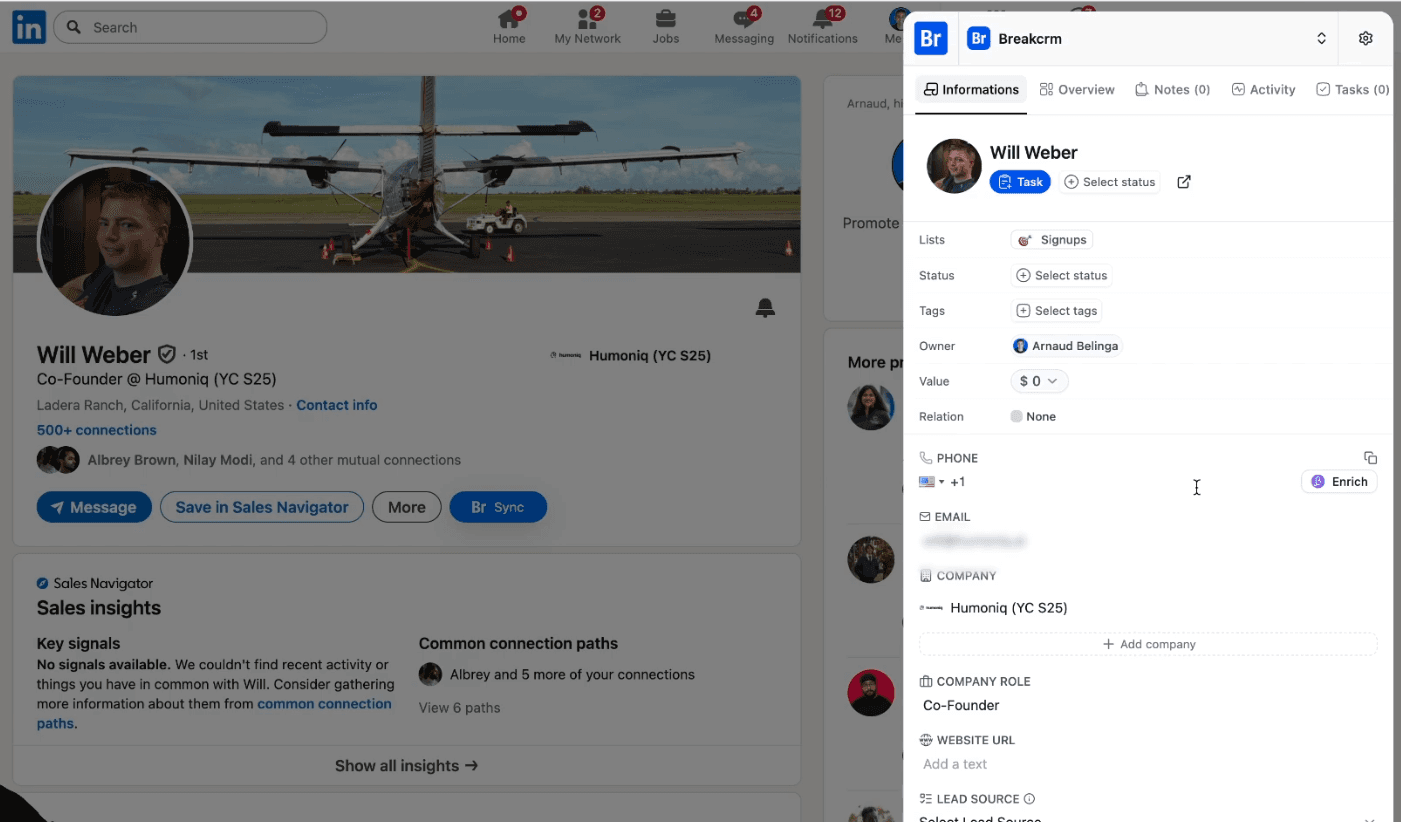
Don’t expect the phone number to appear instantly. Phone enrichment usually takes longer than email enrichment. It can take anywhere between 1 and 5 minutes ⏳.
For the sake of the video, we’ll either speed this up or cut directly to the result so you can see what happens.
Alright guys, as you can see, the process is now finished and the phone number has been successfully found.
If I go back to Breakcold, then head to Settings → Enrichment → History, I can see all the enrichment jobs that were executed, whether it’s for phone numbers, emails, or other data 🔍.
Here, I get full visibility into 👀:
Every API call
What succeeded
What failed and why
All of this data perfectly matches what you would see inside Better Contact, but the key thing is this 🧠:
you don’t actually need to go back to Better Contact at all.
Everything happens natively inside Breakcold ⚙️.
And with that, you now know how to find significantly more B2B phone numbers directly inside your CRM 📞.
2°) How to find more B2B Emails
There are actually many ways to find more emails in your CRM. We’ll cover a more advanced tip later in the article, but first, we need to talk about something fundamental:
the difference between CRMs with native email enrichment and third-party email enrichment tools.
Loading YouTube sends it your IP address and may enable cookies. This applies to this content only.
Native email enrichment inside CRMs
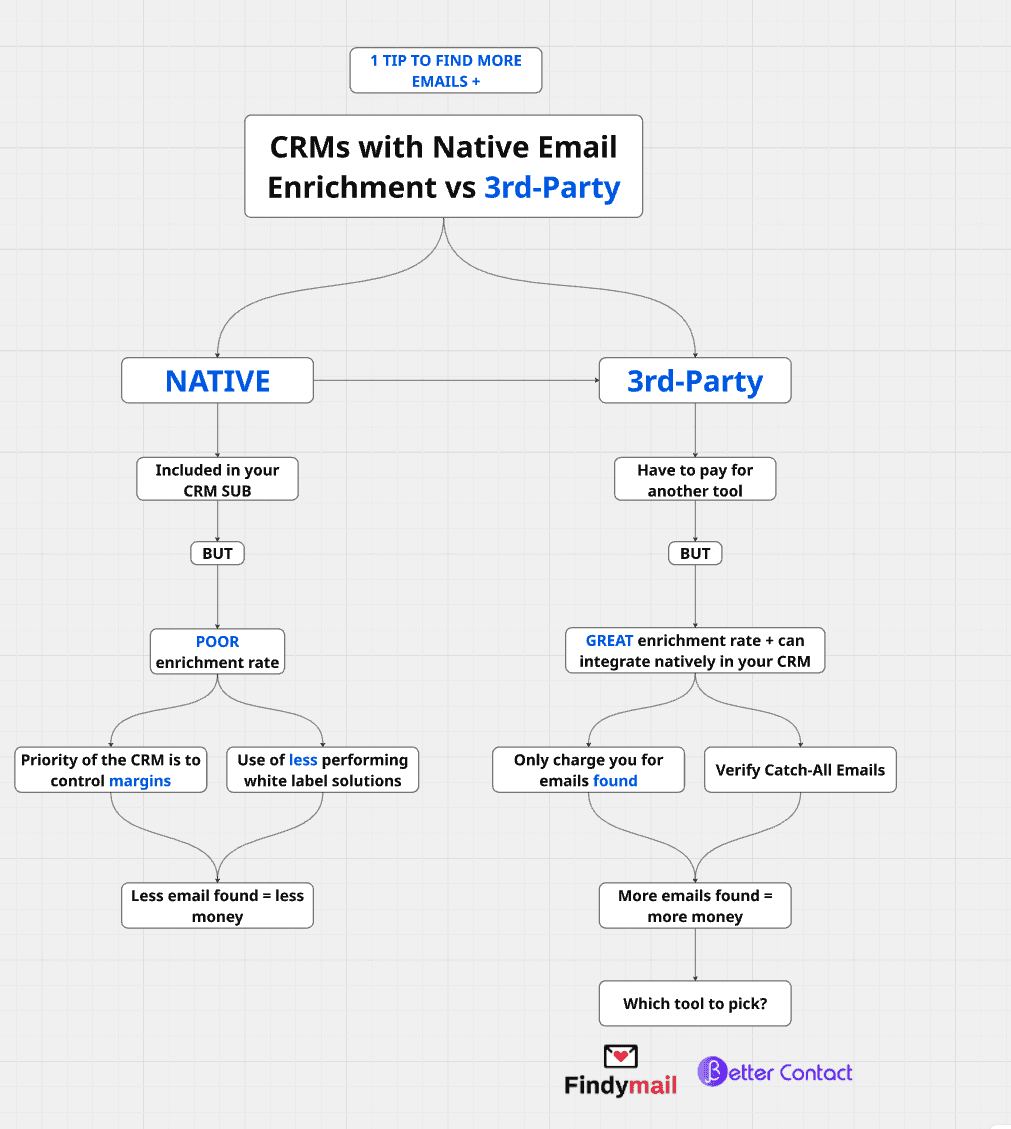
Some CRMs offer native email enrichment. On paper, this sounds great because it’s included in your CRM subscription.
The problem?
The email enrichment rate is usually poor.
Why? Because CRMs are SaaS businesses with significant costs. Their priority is to protect margins, not to maximize your enrichment rate. They have very little incentive to give you the best possible email coverage.
As a result, these CRMs often rely on weaker white-label solutions that simply don’t perform well.
That means:
Fewer email addresses found
Fewer people you can contact
Less revenue generated
Because of this, I generally don’t recommend choosing a CRM based on native email enrichment alone.
Third-party email enrichment tools
Now let’s talk about third-party tools.
The main downside is obvious:
You need to pay for an additional tool.
But the upside is huge.
Third-party email enrichment tools usually have much higher enrichment rates, and most of them integrate natively with your CRM. They also typically:
Charge you only for emails actually found
Verify catch-all emails
I won’t go into all the technical details here, but the bottom line is simple:
You can expect around a 30% boost in email enrichment.
More emails found means:
More prospects reached
More replies
More revenue
Which tool should you use?
If your goal is to find more and better email addresses, I recommend using Findymail.
In my opinion, Findymail is currently the best email enrichment tool on the market. They arguably have the highest email enrichment rate, and this has been proven repeatedly through benchmarks and data analysis.
Many people have compared Findymail with other tools, and the conclusion is almost always the same:
Findymail finds more emails.
In terms of pricing, you can start for free, and the first paid plan starts at $49 per month, which is very reasonable given the performance.
This is also why I recommend BetterContact. I think Better Contact is a very strong second option.
Pricing starts at $15 per month, which makes it extremely affordable.
Honestly, whether you choose Better Contact or Findymail, you really can’t go wrong.
For this video though, I’ll use BetterContact because it’s the most affordable option, and that way more people can actually follow along and use it.
The method to find MORE B2B Emails
PART 1: THE SETUP
Alright guys, let’s get started.
The first thing you’re going to do is go to Google and type BetterContact, or simply click the link in the description. Once you’re on the website, click on Start for free.
After that, you’ll need to subscribe.
Go to Subscription, then click on Subscribe to Starter.
Be careful here: make sure the higher plan is not selected by default, otherwise you’ll accidentally upgrade. Just select Starter, then subscribe.
Once you’ve paid, you’re going to head to the API cockpit and copy your API key.
Next, you’ll go over to Breakcold.
You can do this with any CRM, but I’ll use mine since it makes sense.
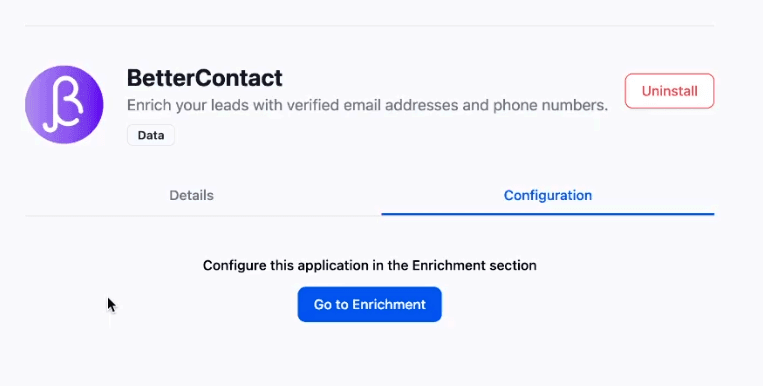
Go to Google, type Breakcold, click Try Breakcold free, and complete the onboarding. Once you’re inside, go to Settings, then App Store, and select BetterContact.
Click Install, enter your email, then paste your API key.
And that’s it.
You’ve now natively integrated BetterContact into your CRM to enrich leads.
Let me show you how it works.
Let’s say I want to add someone to the CRM and find their email address. I’ll use the founder of Findymail as an example. Even though I’m using BetterContact, I think it’s fair to mention both tools since they’re clearly the best on the market based on data.
I click the button to add the person to the CRM. Since Better Contact is installed as a native integration, I can enrich the email address directly inside the CRM.
I click Create lead, then Enrich email, and just like that, the email gets enriched natively inside the CRM.
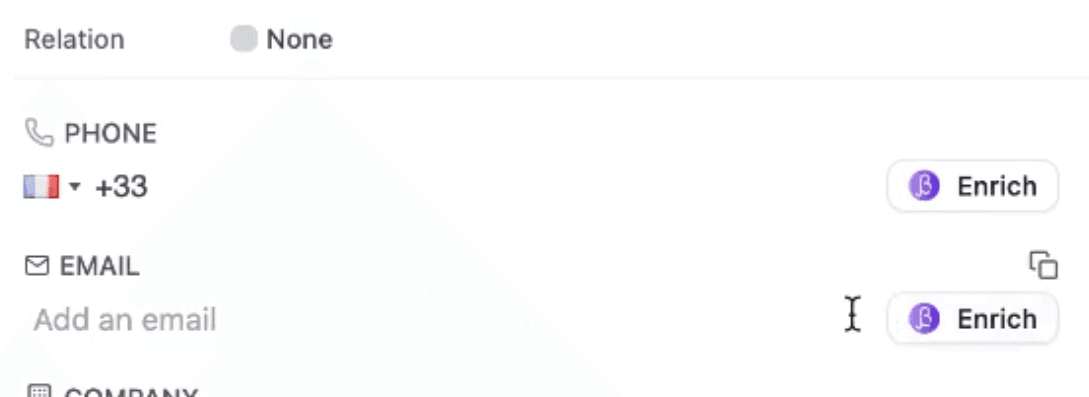
As you can see, I can also enrich the phone number.
Sometimes this can take a bit of time. In some cases, it might take around 30 seconds, and for more complex profiles, it can take 2 to 3 minutes. That’s completely normal.
I’m going to refresh the page and go back into the CRM.
But before that, let me show you a very important tip.
PART 2: THE BIG MASSIVE TIP to find MORE B2B Emails
When people try to enrich B2B email addresses natively inside their CRM, they usually make one big mistake.
The mistake is simple:
They don’t have the website URL of the prospect.
When it comes to email enrichment, if you don’t have the website URL, your enrichment rate will be much lower.
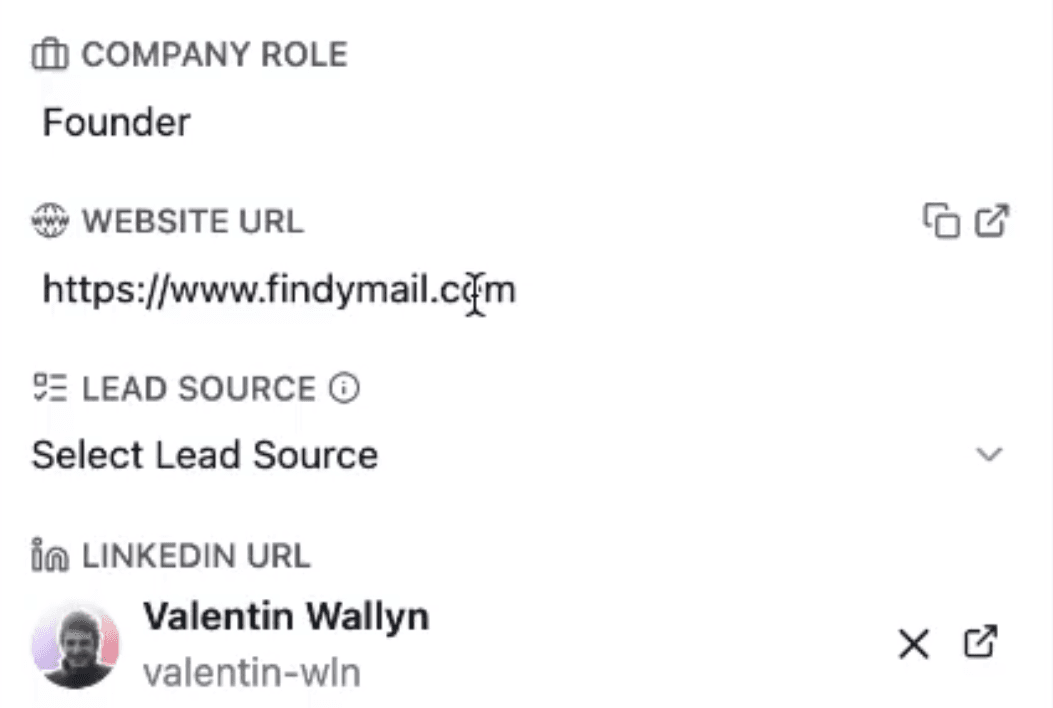
Alright, it looks like the enrichment just finished. Let me refresh the page and click again.
And as you can see, there it is. We’ve got the email address.
Now let’s go back to Breakcold, because this is where it gets interesting.
Just by pulling in the email address, the CRM automatically aggregated all past interactions I’ve had with this person. You can see:
Email conversations
LinkedIn conversations (because I also have the LinkedIn URL)
All related contacts across different email and LinkedIn threads
It even synced the meetings we had in the past. I can rewatch the meeting and see everything we said for over an hour, which is honestly amazing.
And all of this happened just by syncing the email address.
From there, the CRM automatically categorized the lead using AI and generated a summary for me.
But let me go back to the main point, because this is critical.
If you don’t have the website URL of your prospect, your email enrichment rate will be significantly lower.
Most people try to enrich emails with only:
First name
Last name
Company name
That’s not enough.
If you want a high enrichment rate, you need the website URL.
In this case, I got the website URL automatically when I clicked the button. But in most setups, people only input the name and company, then complain that their enrichment rate is around 30% to 40%, depending on whether they target SMBs or enterprises.
As soon as you include the website URL, your enrichment rate can jump to 60% to 80%, again depending on whether you’re targeting SMBs or enterprise accounts.
This one detail alone makes a massive difference.
Other ways to enrich/find B2B Emails in a CRM
Alright guys, with that being said, I also want to point out that inside your CRM, there are multiple ways to enrich your leads natively with valid B2B email addresses.
The first one is very simple.
You can go into the CRM, bulk-select leads, and with a single click, enrich emails or phone numbers in bulk. You don’t need to do this one by one like I did earlier. Bulk enrichment works perfectly fine.
The second option is even better.
If you go to Settings, then Enrichment, and open the Automation Rules section, you can fully automate email enrichment.
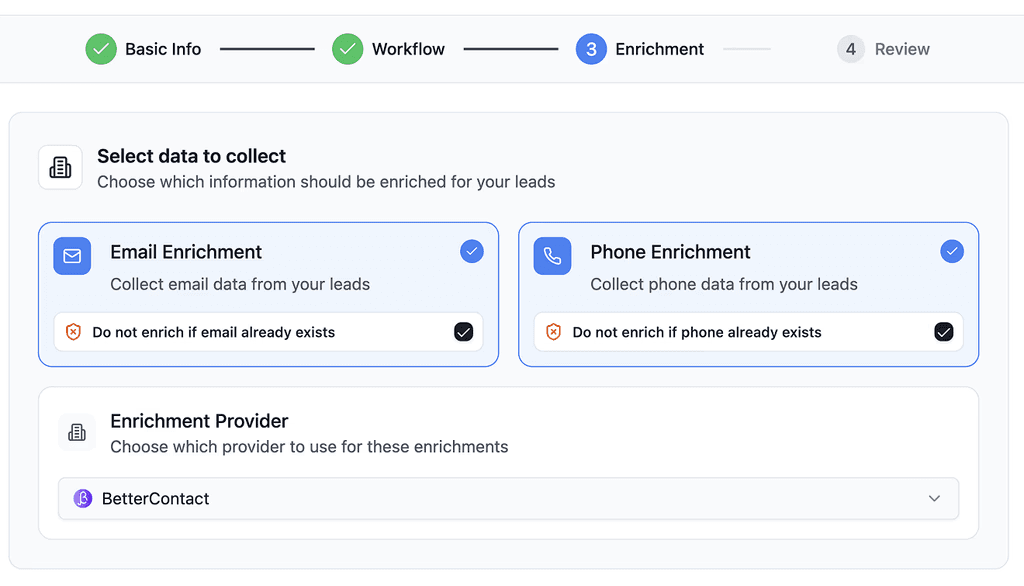
For example, I can create a rule that says:
When a new lead is created
And when this lead is added to the Signups list
Or even more precisely, when the lead enters a specific pipeline stage inside that list
Let’s say a new lead becomes a Free Trial in my Signups pipeline.
When that happens, and only then, the CRM will automatically enrich the valid B2B email address of that person.
From that point on, everything runs on autopilot.
You don’t need to click anything.
You don’t need to bulk-select leads.
The enrichment happens automatically as leads move through your pipeline.
Now, just to show you that this is real and not staged, if you go to Enrichment and then History, you can see all the enrichment jobs that were executed natively inside the CRM.
If I click on View details, you can see exactly what happened:
The job was completed successfully
The email was found
And the confidence score is 100, which means the email is extremely unlikely to bounce
This confirms that the email is a valid B2B address.
What’s also great is that all of this data is perfectly aligned with what you see inside the Better Contact API cockpit. Everything is fully integrated into the CRM, so you don’t even need to go back to BetterContact to track what happened with your API calls.
Everything is visible directly inside the CRM.
And that’s pretty much it.
Frequently asked questions

Written by
Arnaud Belinga · Co-Founder & CEO at Breakcold
Arnaud is the Co-Founder & CEO of Breakcold, the AI Native CRM for sales teams of 5 to 30+ people.