



CRM Custom Fields: What They Are + How to Use Them (2026)
TL;DR: what CRM custom fields are and how to use them well
✅ What they are: user-defined fields (also called attributes) that let you track data points specific to your business, beyond the default Name, Email and Phone fields.
✅ Fields vs objects: custom fields add a detail inside an existing record; custom objects create an entirely new data entity with its own relationships.
✅ Why they matter: they personalize outreach, unlock better segmentation and reporting, trigger smarter automations, and boost team adoption.
✅ Best practices: keep it simple, use clear naming, favor dropdowns over free text, group fields by lifecycle stage, and audit unused fields regularly.
✅ In Breakcold: custom fields are called attributes and you create them per Person, Company or Deal from Settings, then the AI Native CRM can act on them for you.
Loading YouTube sends it your IP address and may enable cookies. This applies to this content only.
Not all businesses are built the same — and your CRM shouldn’t be either.
While some companies invest in fully custom-built CRMs tailored to their exact needs, most rely on off-the-shelf platforms. These ready-made tools can’t afford to customize every user’s setup without compromising their own scalability.
But there’s a smart workaround: Custom Fields.
They give businesses the flexibility to personalize their CRM experience — without breaking the platform or the brand behind it.
🧩 What Are CRM Custom Fields?
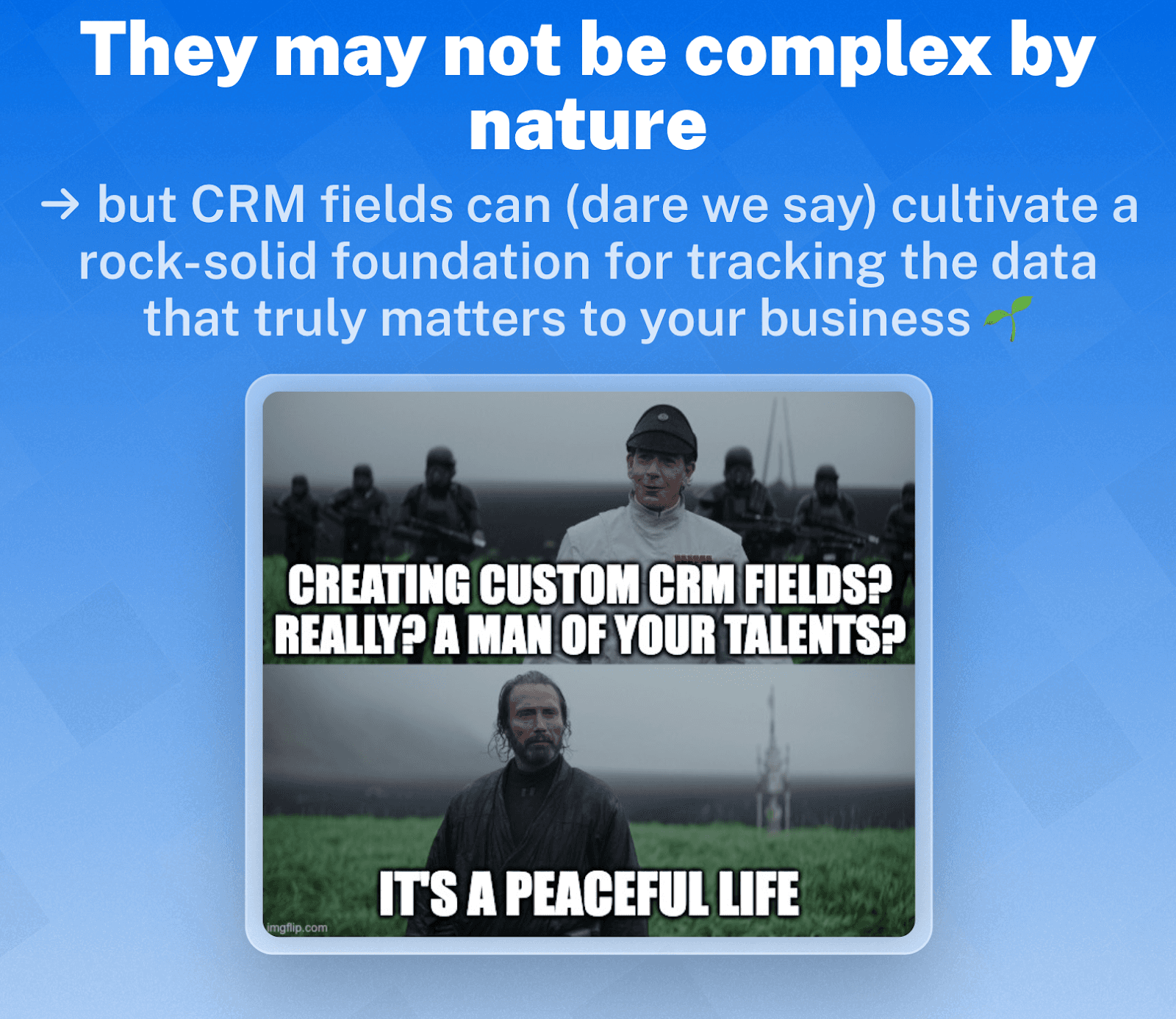
Depending on the platform you use, CRM custom fields (or attributes) are user-defined fields that allow you to tailor your CRM to your specific business needs. Unlike default fields — which are built into the CRM (like Name, Email, or Phone Number) — custom fields give you full control to track data points that matter most to your process.
Whether you're in sales, consulting, or SaaS, custom fields let you record and organize information that’s unique to your business or industry.
⚖️ CRM Custom Objects vs. Custom Fields
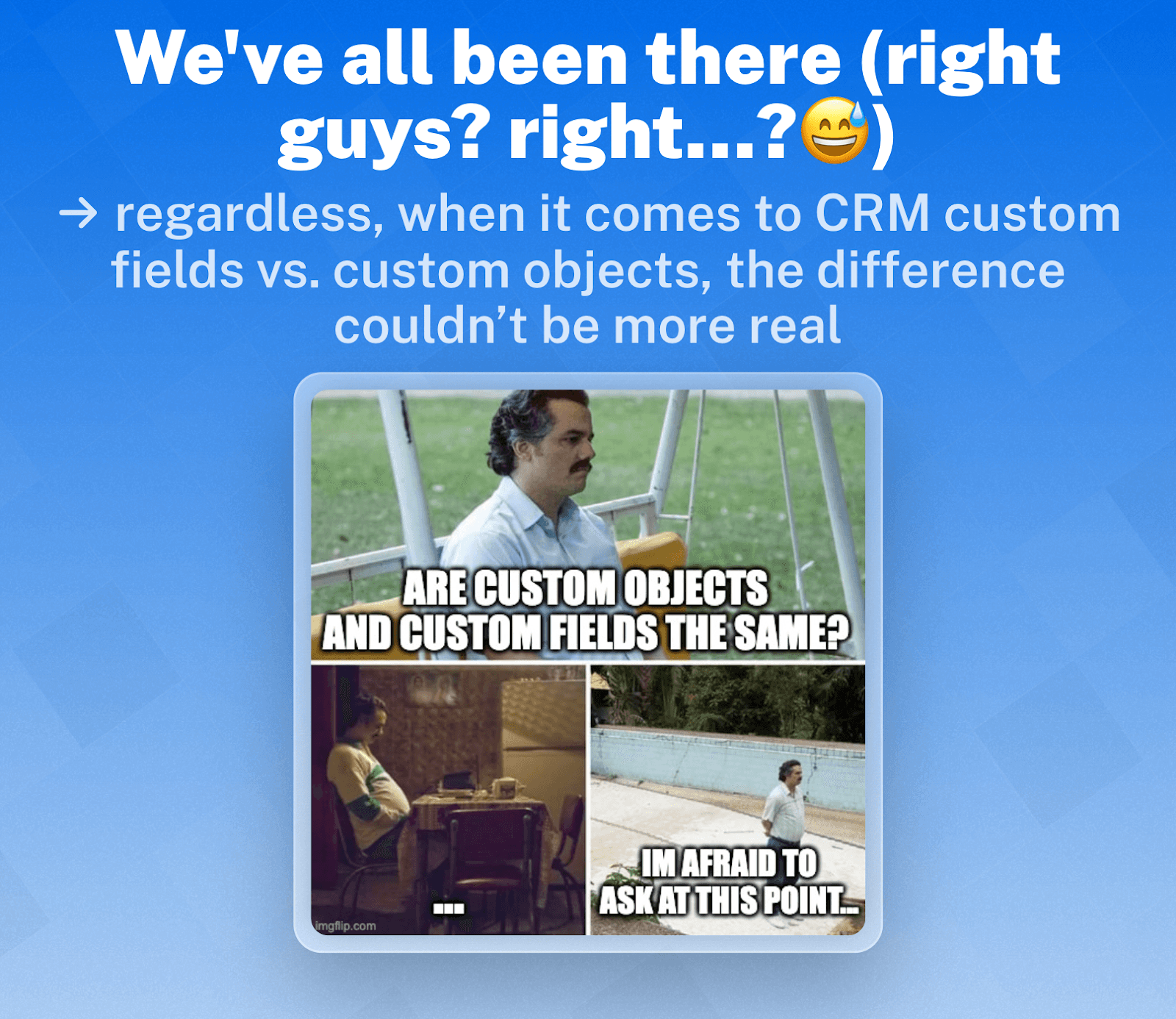
As your CRM setup grows more sophisticated, you’ll likely come across two powerful customization features: custom fields and custom objects. At first glance, they might seem similar — they both let you tailor your CRM to fit your business. But they serve very different purposes.
Custom Field | Custom Object | |
|---|---|---|
Purpose | Adds a new attribute to an existing object | Creates an entirely new data entity or category |
Example | “Industry” field inside a Contact record | “Subscription Plan” object linked to a Contact |
Where it lives | Inside existing records (e.g., Contacts) | As its own section with linked relationships |
Use case | Storing extra data per record | Managing structured, related data sets (e.g., licenses, assets, orders) |
Simply put:
Custom Fields = Additional details within existing CRM objects like Contacts, Companies, or Deals
Custom Objects = Entirely new types of records that can be related to existing ones
🚀 Why Custom Fields Matter
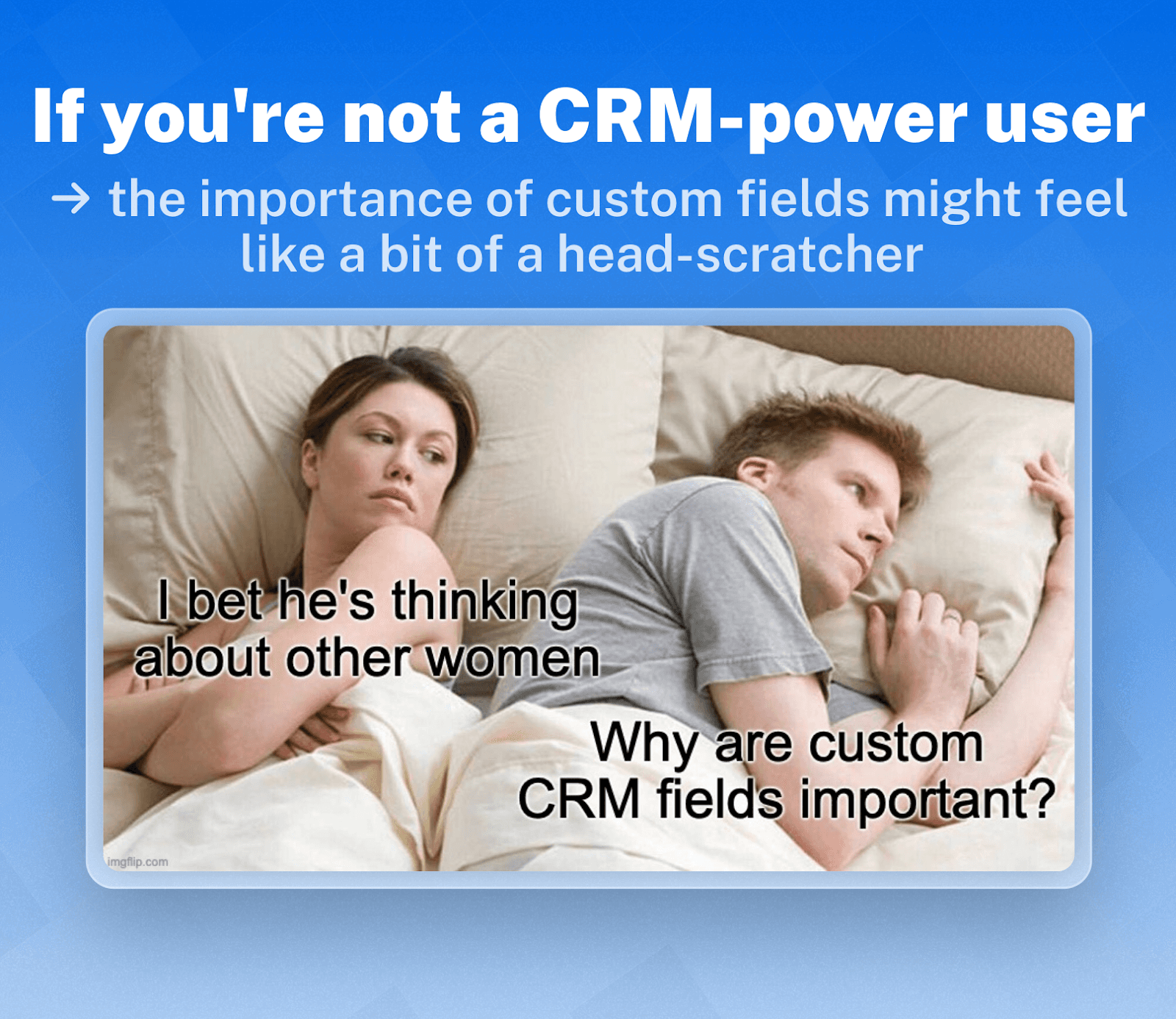
Custom fields aren’t just a “nice-to-have” — they’re the backbone of a CRM that actually works for your business. Here’s how they bring serious value:
1. Personalize Every Touchpoint 🎯
Track the details that actually matter — like industry, preferences, or deal stage — so your outreach feels relevant and timely, not robotic.
✅ Example: Segment leads by persona or funnel stage for more personalized email flows.
2. Unlock Powerful Segmentation & Reporting 📊
Turn raw data into insights. Custom fields let you filter by anything — region, product interest, source, and more.
✅ Example: Compare conversion rates by lead source or deal size by industry.
3. Automate Smarter Workflows ⚙️
Use custom field values to trigger actions, assign owners, or prioritize tasks without lifting a finger.
✅ Example: Automatically assign leads to reps based on region or product type.
4. Boost Team Adoption 🤝
When your CRM speaks your team’s language, they’ll actually want to use it. Custom fields make the system feel familiar, not forced.
✅ Example: Sales, support, and marketing each get the fields they care about — no clutter, just clarity.
🗂️ Common CRM Custom Field Types with Industry Use Cases
Different types of custom fields serve different purposes. Here's a breakdown of the most common types — along with real-world examples of how various industries use them:
Reason It Matters | Custom Field Type | Description | Example Use Cases |
|---|---|---|---|
Personalization of the sales journey | Single-line Text | Freeform text for short entries | Startups: Investor name Consultants: Project lead Agencies: Campaign title |
Better segmentation & reporting | Dropdown / Select | Single-choice from a predefined list | Startups: Funding stage SaaS: Pricing plan Consultants: Engagement type |
Workflow automation & filtering | Date | Tracks key events or deadlines | Agencies: Launch date Startups: Demo scheduled SaaS: Renewal date |
Operational efficiency & visibility | Checkbox / Boolean | Yes/No fields for status or flags | Consultants: NDA signed? SaaS: Onboarding complete? Agencies: Assets approved? |
Team-wide CRM adoption | Multi-select | Select multiple values from a list | Agencies: Services offered SaaS: Features used Consultants: Pain points |
Advanced data & performance tracking | Calculated Field | Auto-computed values based on existing field data | Startups: Days since last investor meeting SaaS: MRR Agencies: ROI estimate |
🔧 How to Add Custom Fields in Breakcold
Good news — Breakcold makes it easy to create custom fields (called attributes on our platform) so you can tailor your CRM exactly to your workflow.
Here’s how to set them up:
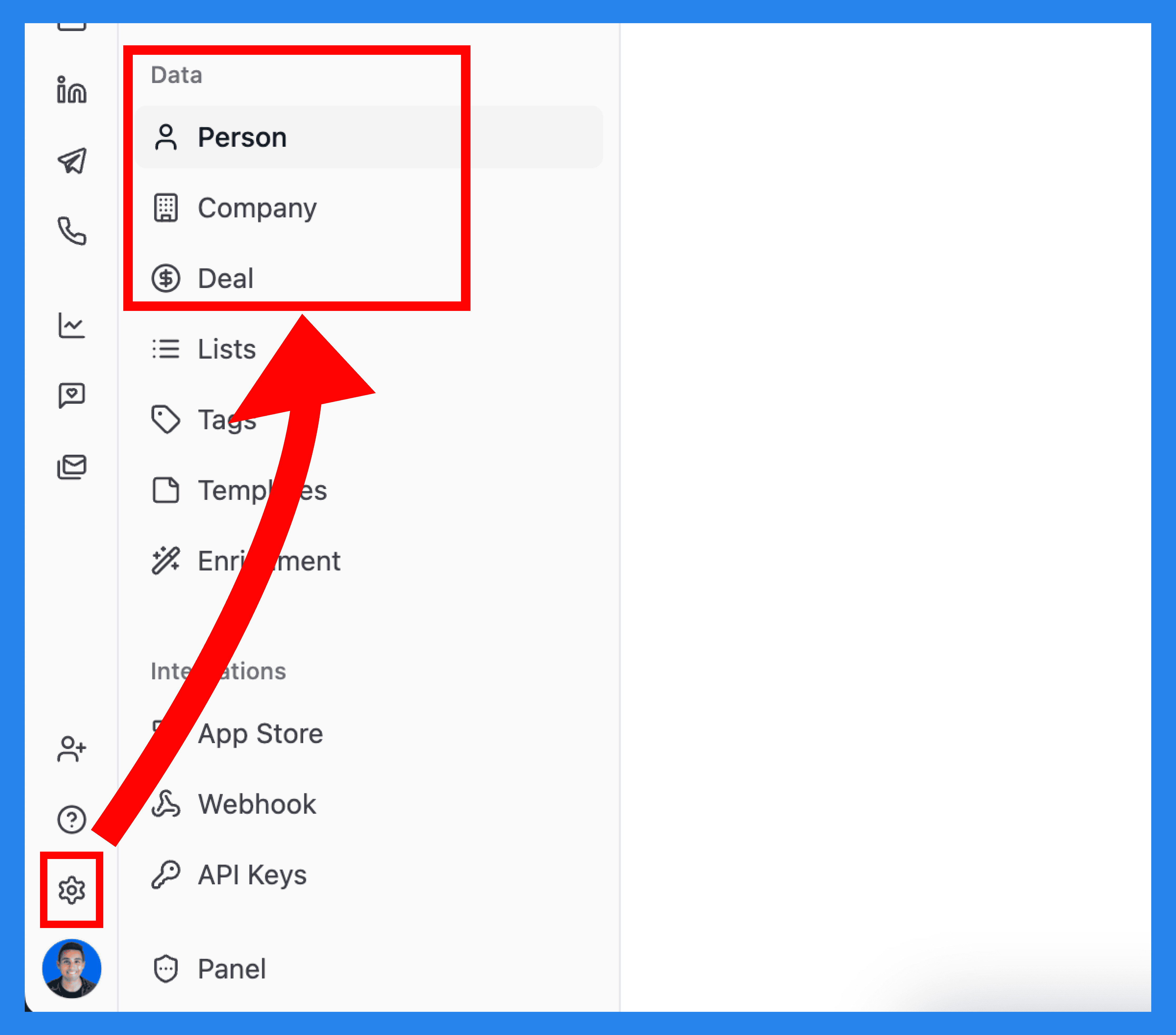
👉 Step 1: Go to Settings
Head to the Settings icon. Under the Data tab, you’ll see options to create custom attributes for Person, Company, or Deal records.
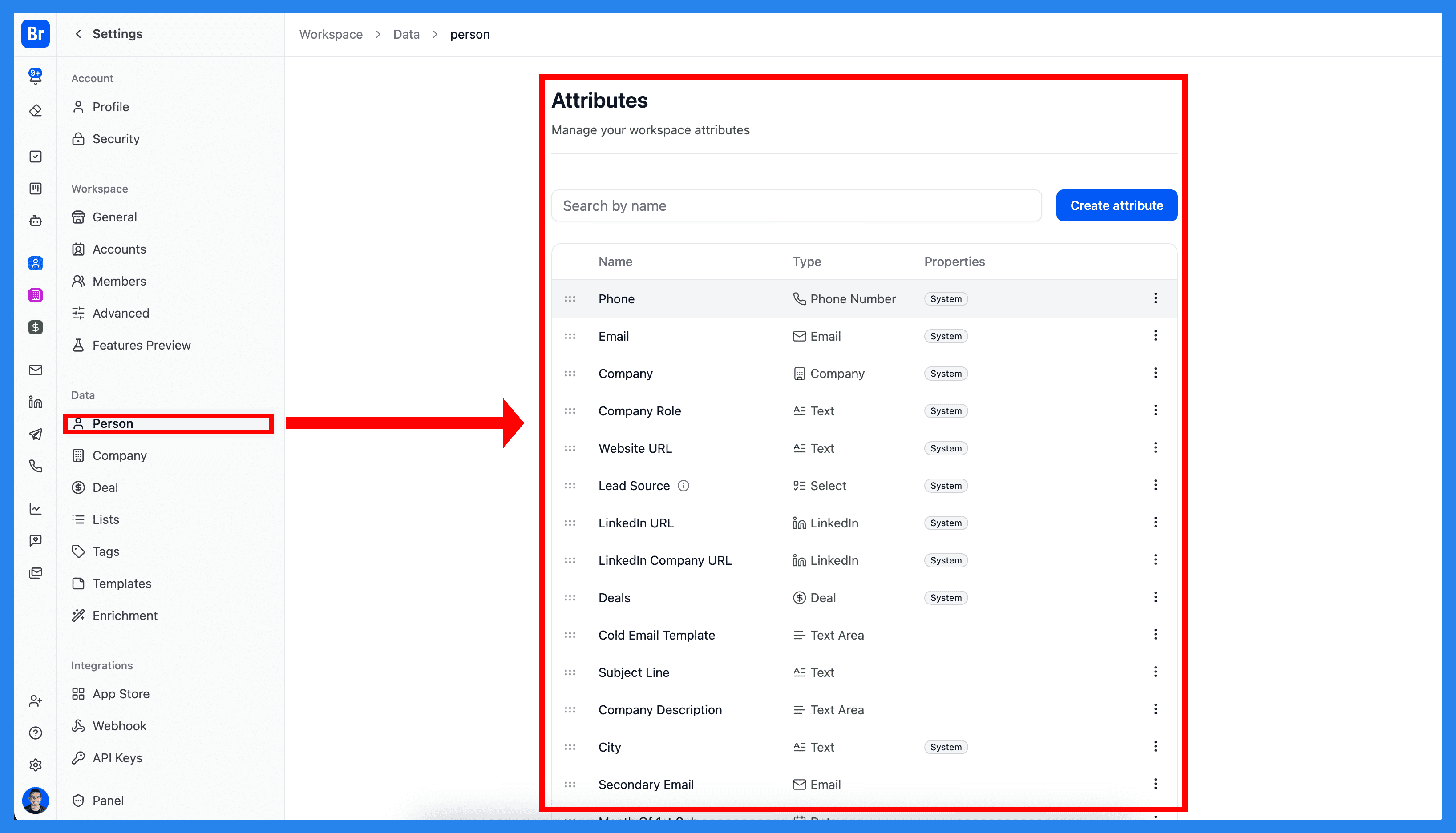
👉 Step 2: Choose What You Want to Customize
Let’s say you want to add a custom attribute to your Person records. Here, you can view and manage both system-defined and custom attributes.
👉 Step 3: Click “Create Attribute”
Hit the “Create Attribute” button. A setup window will pop up, letting you choose the attribute type (e.g., Text, Checkbox, Multi Select, etc.). Once saved, your new custom field will appear whenever you create or edit a record in Breakcold.
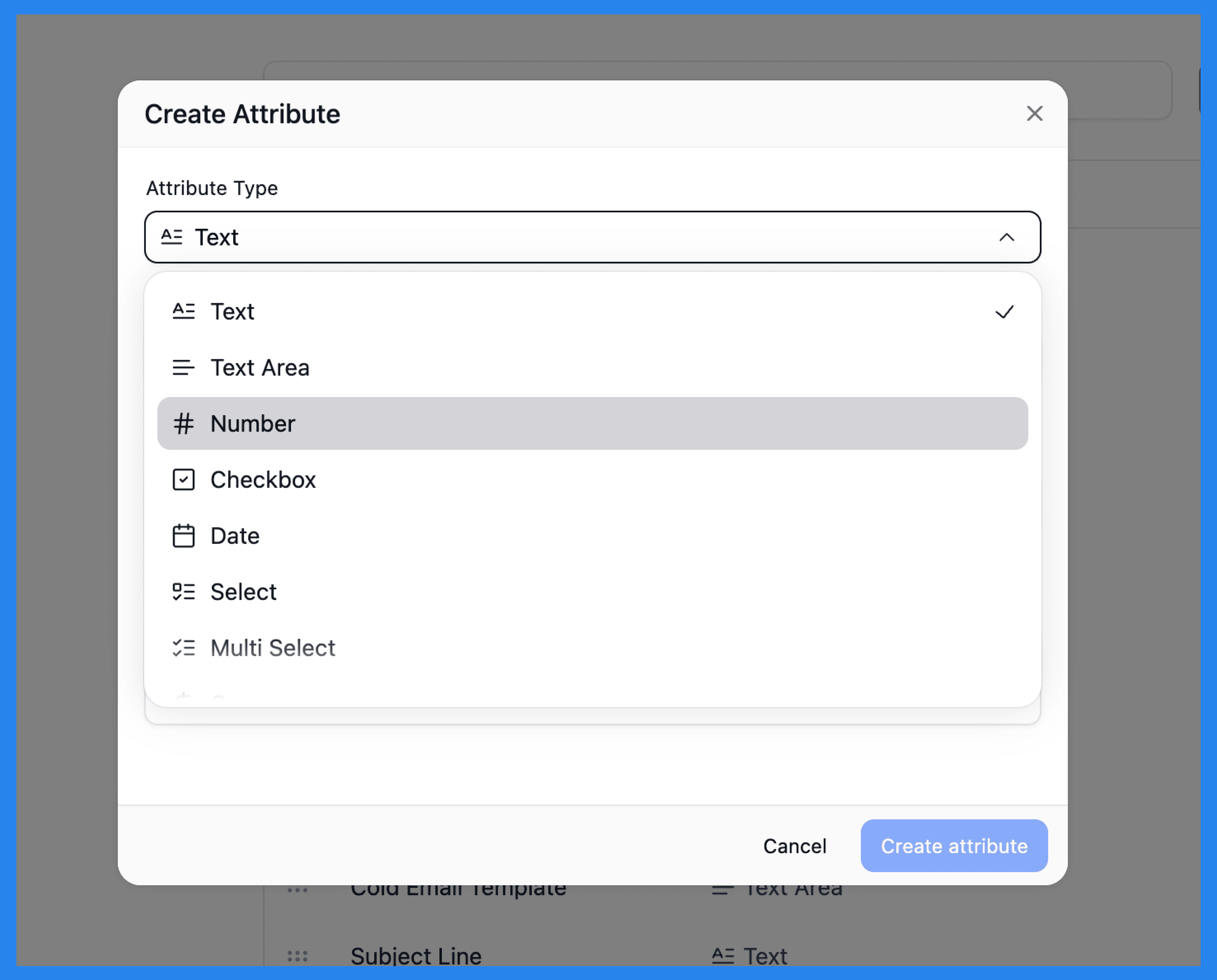
Pretty straightforward, right? If you’d like to explore more advanced tips and use cases, head over to our Knowledge Base for a full breakdown on custom attributes in Breakcold.
🔍 CRM Custom Fields: Best Practices and Common Pitfalls
Custom fields are incredibly powerful — but only if you use them right. Done well, they make your CRM smarter, faster, and more intuitive. Done poorly, they clutter your system and confuse your team.
Let’s break down what to do ✅ and what to avoid ❌ when setting up your custom fields.
Best Practices
Keep it simple 🧼
Don’t go overboard. Only create fields that serve a real purpose. Less is more!Use clear, consistent naming conventions 🏷️
Stick to logical, human-readable labels like “Lead Source” instead of “Custom1” or “LSrc_23”.Favor dropdowns over free-text 🎛️
Dropdowns keep data clean and standardized—no more sorting through messy typos or random inputs.Group fields by workflow stage 🗂️
Organize your fields by lifecycle stages (e.g. Lead, Deal, Client) to keep your CRM interface neat and efficient.Audit and clean up regularly 🧹
Review your custom fields every few months. If no one’s using a field — delete it!Train your team 🧠
A well-built CRM is only useful if your team knows how to use it. Make sure everyone’s on the same page.
Common Pitfalls to Avoid
Creating too many overlapping fields 🤯
“Industry” vs. “Market” vs. “Sector”? Pick one. Redundancy leads to confusion.Using vague or generic labels 😵💫
“Custom1” or “Misc Info” won’t help anyone. Be clear and specific.Neglecting integrations 🔌
Don’t forget to sync your custom fields with other tools — like web forms, automation tools, or reporting systems.Skipping documentation 📄
If no one knows what a field is for, they’ll ignore it or use it incorrectly. Keep internal docs or tooltips updated.
💬 Final Thoughts
Now that you know custom fields are more than just a nice-to-have — they’re what transform a generic CRM into a system that actually fits your business. Whether you're tracking investor stages at a startup, campaign details at an agency, or onboarding milestones in a SaaS company, custom fields let you collect the data that matters most.
When used thoughtfully, they improve personalization, streamline workflows, boost reporting accuracy, and increase team adoption. Just remember to keep things organized, avoid clutter, and train your team along the way.
Frequently asked questions

Written by
Arnaud Belinga · Co-Founder & CEO at Breakcold
Arnaud is the Co-Founder & CEO of Breakcold, the AI Native CRM for sales teams of 5 to 30+ people.