


How To Block Someone On LinkedIn Within 2 Minutes
TL;DR: to block someone on LinkedIn, open their profile, click More, then Report/block, then Block
✅ Blocking takes about two minutes: go to the profile, click More, choose Report or block, then Block.
✅ To unblock, go to Settings and Privacy, then Visibility, then Blocking, find the person and click Unblock.
✅ Once blocked, you both lose access to each other's profiles and past messages, and LinkedIn stops suggesting their content.
✅ LinkedIn does not notify the person you blocked them, unless you share a Recruiter account, and you can block up to 1,400 members.
\
1°) How to block someone on LinkedIn in 2 minutes
Step 1: Go to the LinkedIn profile
Step 2: Click on the "More" button
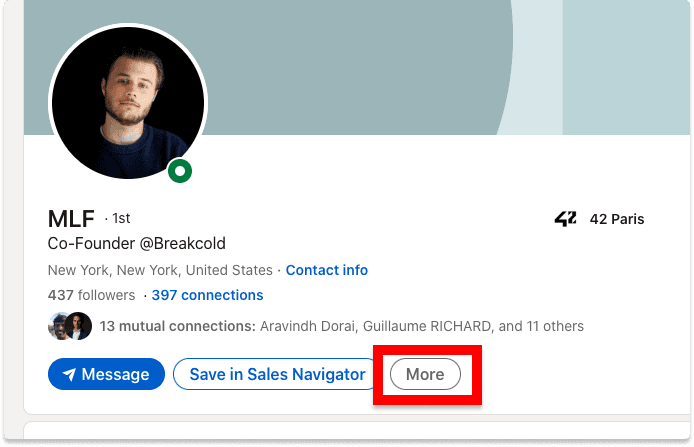
Example of the more button
Step 3: Click on "Report/block"
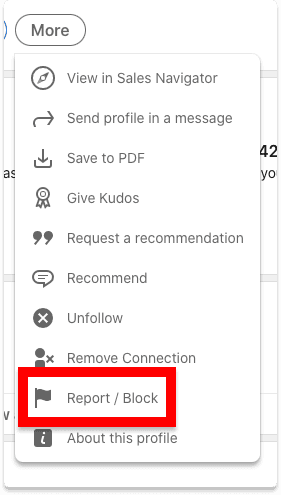
Example of the report/block button
Step 4: Click on the last option which is Block
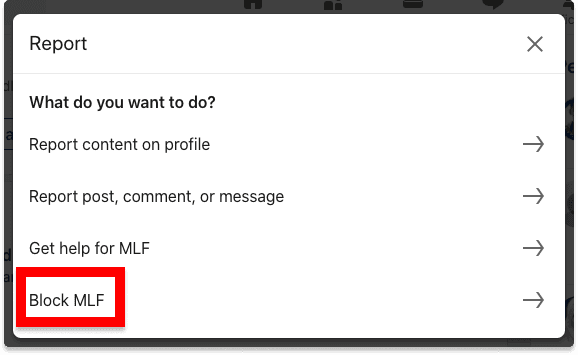
Example of the block button
2°) How to unblock someone on LinkedIn
Step 1: Click on the "Me" icon where there is your profile picture
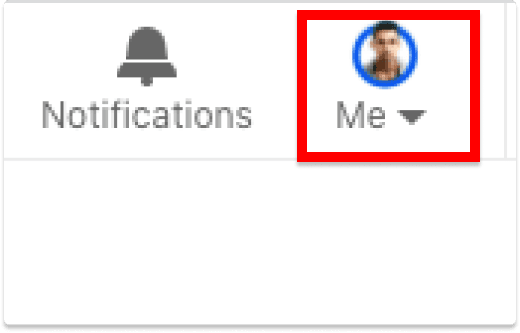
The "Me" button
Step 2: Go to Settings & Privacy.
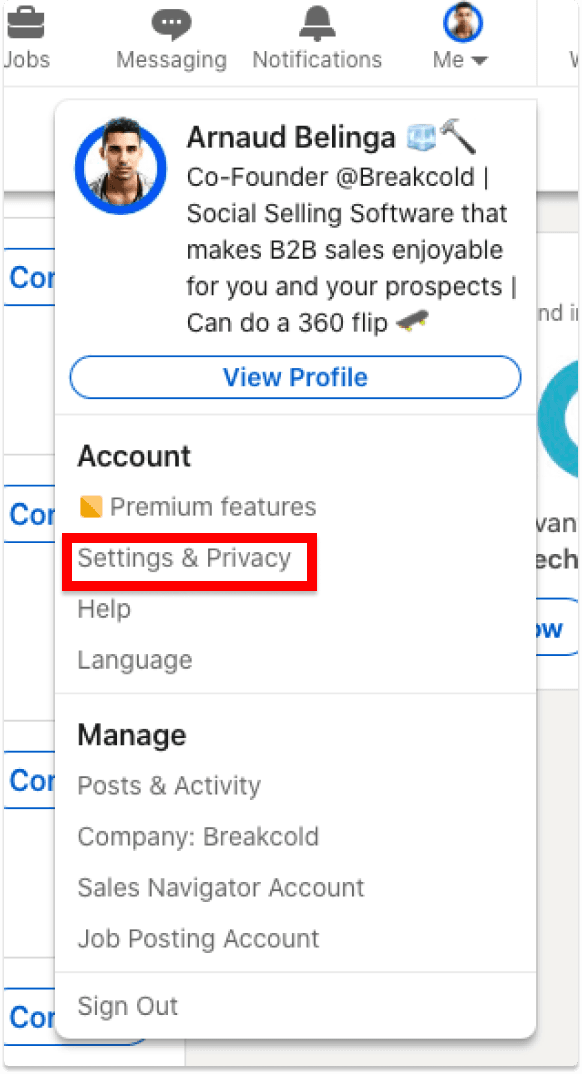
Example of the settings and privacy button
Step 3: Go to Visibility
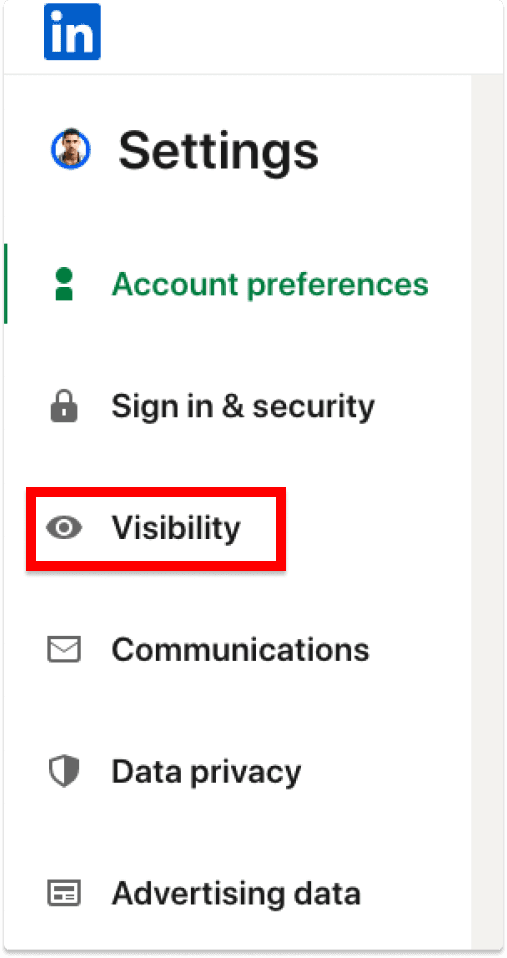
Example of the visibility button
Step 4: Go to Visibility of your LinkedIn activity
Step 5: Click Blocking
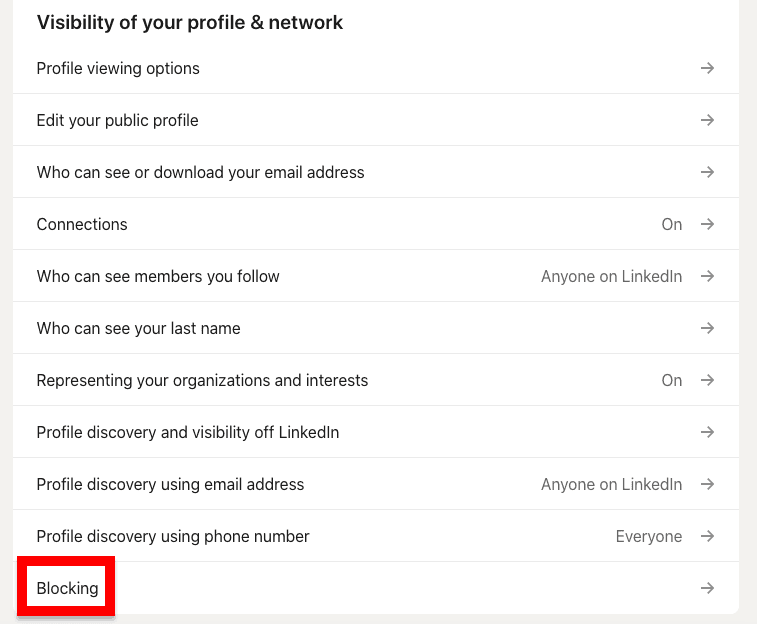
Example of the blocking button
Step 6: Select Change
Step 7: Scroll your blocked list and find the person's name then click on "Unblock".
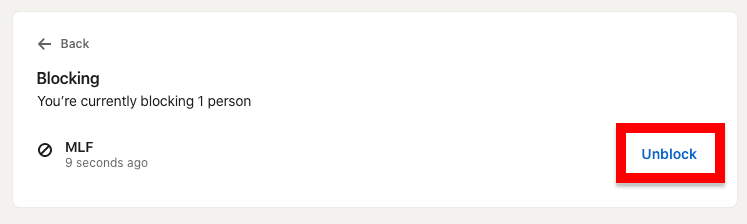
Unblock button
Step 8: type your password and click on "unlock member"
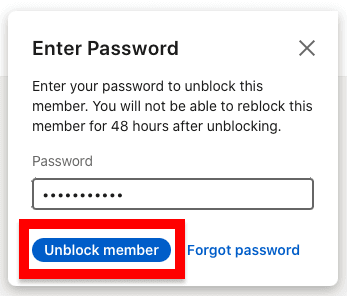
Unlock member button
2°) What happens when you block someone on LinkedIn?
Once you block a LinkedIn user, you won't be able to access each other LinkedIn profile along with past LinkedIn conversations.
On top of that, LinkedIn will stop suggesting the content of that person and you will no longer receive notifications about he/she.
If they're subscribed to your newsletter, they will ne longer receive it and so forth.
Basically, the goal of the unblock is to erase the existence of each other for both parties.
2°) Why you should block someone on LinkedIn?
Reason 1: to curate your LinkedIn feed
Although you can unfollow people to no longer see their LinkedIn posts in your feed. Blocking certain type of people will prevent to never receive or view any type of content from them.
Reason 2: to avoid negative people in your LinkedIn network
Some LinkedIn users are just toxic, your goal might be to simply avoid that person.
3°) Other questions about blocking people on LinkedIn
1/ Can you block all types of LinkedIn connections? (1st, 2nd and 3rd connections)
Yes, you can block 1st degree to 3rd degree connections without problems.
2/ Are people blocked forever?
As long as you don't unblock them, they will be blocked so yes technically, they are blocked forever.
3/ What to do if you got blocked because of a misunderstanding?
You won't be able to contact the person though LinkedIn so your best bet is to go with emailing or using one of your 2nd degree LinkedIn connection to reach out the person that blocked you.
4/ How many people can you block?
You can block a maximum of 1400 LinkedIn members on the platform. If you manage to block that many people, bravo because it's an insane amount of people.
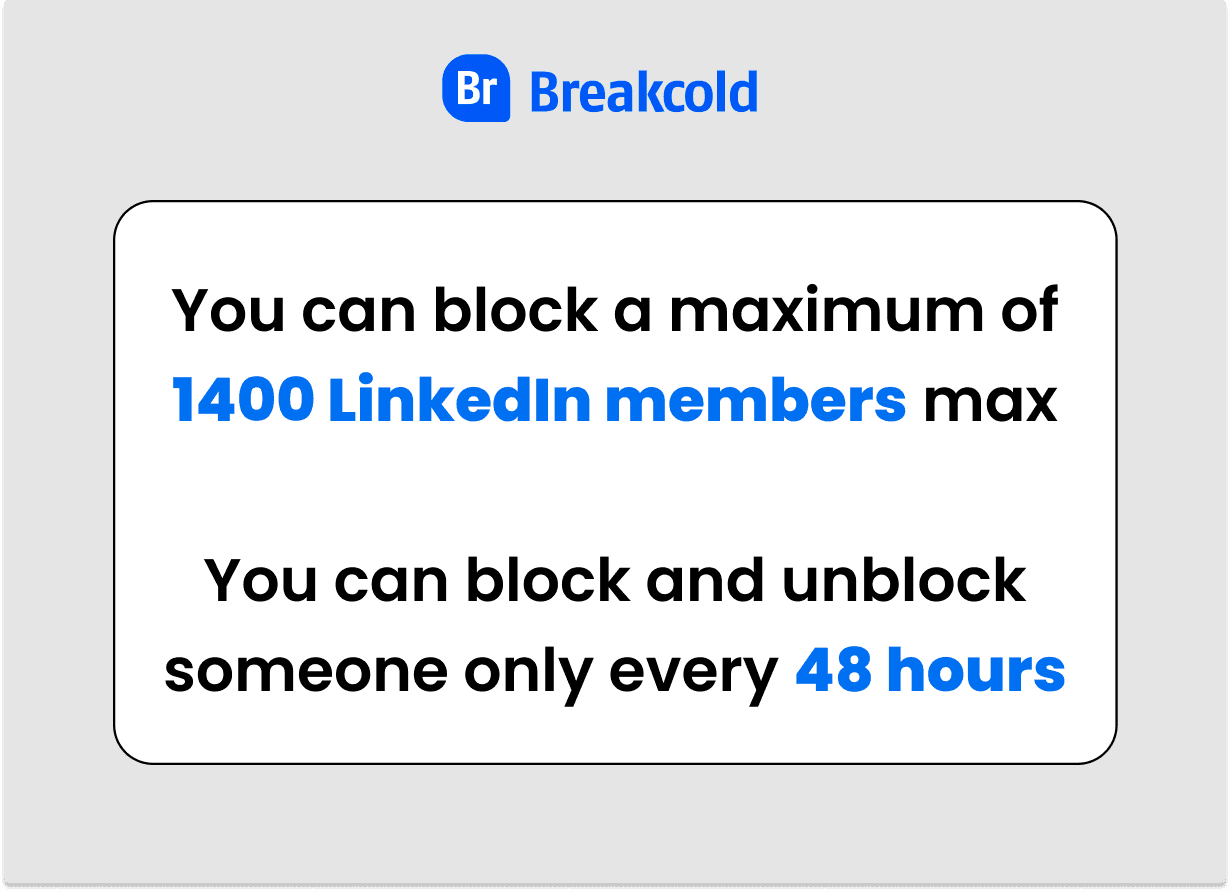
1400 LinkedIn members max
5/ How long should you wait after blocking then unblocking someone if you want to re-block that person?
You can't unblock and reblock someone just for fun over and over every hour. You'll have to wait 48 hours before re-blocking someone.
6/ Are people notified that you blocked them?
Unless you have shared a LinkedIn recruiter account with that person, the concerned LinkedIn user will not receive any notification that he/she got blocked.
Technically though, the person can guessed it because you have to visit their LinkedIn profile to perform the action.
Frequently asked questions

Written by
Arnaud Belinga · Co-Founder & CEO at Breakcold
Arnaud is the Co-Founder & CEO of Breakcold, the AI Native CRM for sales teams of 5 to 30+ people.